
Copilot CLI
- Homepage: github.com/features/copilot/cli
- Install docs: docs.github.com - Install Copilot CLI
- Gateway config: Using your own LLM models
- Protocol: OpenAI-compatible (BYOK, bring your own model provider)
Install
GitHub Copilot CLI supports macOS, Linux, and Windows. For all other methods, defer to the official install docs.
npm (all platforms) (requires Node.js 22+)
npm install -g @github/copilotHomebrew (macOS / Linux)
brew install copilot-cliWinGet (Windows)
winget install GitHub.CopilotInstall script (macOS / Linux)
curl -fsSL https://gh.io/copilot-install | bashAfter installing, confirm with copilot --version.
Connect TokenBay
How it works
Copilot CLI uses GitHub-hosted models by default. The official docs provide a BYOK (Bring Your Own Key) capability that lets you use your own model provider — you switch by setting a group of COPILOT_PROVIDER_* environment variables before launch. TokenBay uses the OpenAI-compatible type (the default value of COPILOT_PROVIDER_TYPE is openai).
Key points:
COPILOT_PROVIDER_BASE_URLtakes TokenBay’s OpenAI-compatible endpoint roothttps://api.tokenbay.com/v1;COPILOT_PROVIDER_API_KEYtakes your TokenBay API key;COPILOT_MODELspecifies the model ID to use (you can also use the--modelcommand-line flag).
Model capability requirements: The chosen model must support both tool calling (function calling) and streaming, otherwise Copilot CLI returns an error. The official docs recommend a model with a context window of at least 128k.
1. Get an API key
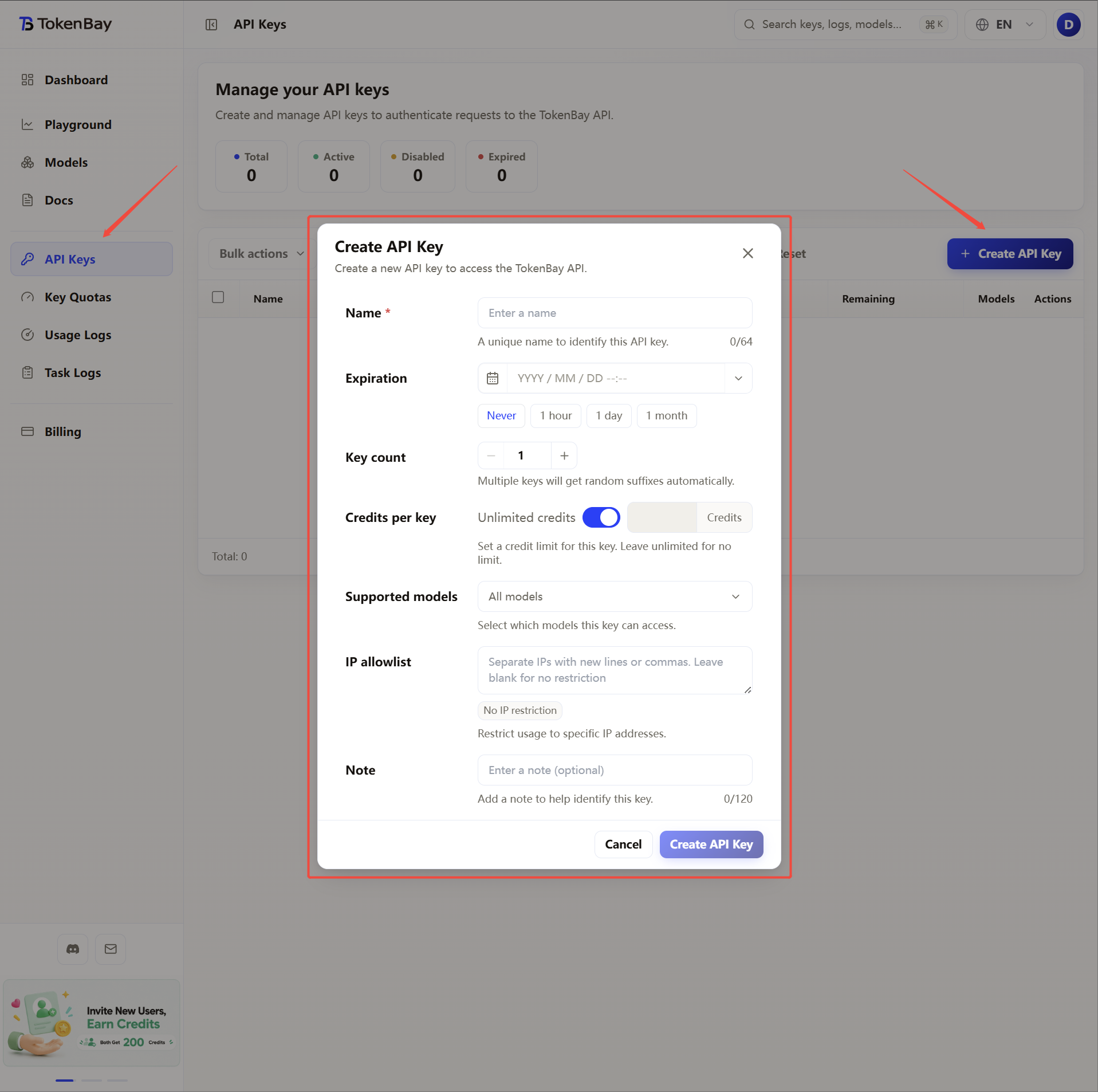
Sign in to the TokenBay console → API Keys → Create Key. Copy the full string starting with sk-. The plaintext is shown only once and cannot be viewed again after you leave the page.
2. Configure environment variables
Copilot CLI reads the following environment variables before launch:
| Variable | Required | Value |
|---|---|---|
COPILOT_PROVIDER_BASE_URL | Yes | https://api.tokenbay.com/v1 |
COPILOT_PROVIDER_API_KEY | Yes | Your TokenBay API key (sk-...) |
COPILOT_MODEL | Yes | The model ID to use (e.g. gpt-5.3-codex) |
COPILOT_PROVIDER_TYPE | No | Provider type; defaults to openai, keep the default for TokenBay |
macOS / Linux (zsh or bash)
Append the following lines to ~/.zshrc or ~/.bashrc, then run source ~/.zshrc to apply them:
export COPILOT_PROVIDER_BASE_URL="https://api.tokenbay.com/v1"
export COPILOT_PROVIDER_API_KEY="sk-XXXXXXX"
export COPILOT_MODEL="gpt-5.3-codex"
Windows (PowerShell, writes to the user-level environment)
[Environment]::SetEnvironmentVariable('COPILOT_PROVIDER_BASE_URL','https://api.tokenbay.com/v1','User')
[Environment]::SetEnvironmentVariable('COPILOT_PROVIDER_API_KEY','sk-XXXXXXX','User')
[Environment]::SetEnvironmentVariable('COPILOT_MODEL','gpt-5.3-codex','User')
Windows (CMD)
setx COPILOT_PROVIDER_BASE_URL "https://api.tokenbay.com/v1"
setx COPILOT_PROVIDER_API_KEY "sk-XXXXXXX"
setx COPILOT_MODEL "gpt-5.3-codex"
Both the PowerShell and CMD forms persist the user-level environment variable, and you need to open a new terminal window for it to be picked up. Once set, launch copilot to take effect.
3. Recommended models
| Use case | Model ID |
|---|---|
| Primary coding | gpt-5.3-codex |
| General-purpose flagship / complex reasoning | gpt-5.5 |
| Best value | gpt-5.4-mini |
Model name format: In model names, version numbers are only accepted in dotted form (e.g.
gpt-5.4); do not write them with hyphens (gpt-5-4).The chosen model must support tool calling and streaming. The table above is just an example. Refer to the Models list for the exact Model IDs and endpoints; before connecting, verify them and confirm your group is authorized for the model.
4. Verify the connection
After setting the environment variables, launch Copilot CLI:
copilotSend a message to confirm a normal reply; you can also specify a model at launch with --model:
copilot --model gpt-5.5If you get an auth failure or a model-unavailable error, first check:
- whether
COPILOT_PROVIDER_BASE_URLincludes/v1; - whether the environment variables are set and you’ve opened a new terminal;
- whether the chosen model supports tool calling and streaming, and the Model ID matches the TokenBay upstream.